Photoshop-native, non-destructive workflow
Generate new images or edit existing ones directly in your document. Results are imported as new layers, so you can keep using masks, selections, filters and adjustment layers, just like native Photoshop.

Maika AI - Adobe Photoshop plugin
Maika is a powerful AI tool that integrates into Photoshop. Generate new images or edit existing ones without leaving your workflow.
It works seamlessly with layers, masks, selections, brushes, and filters, just like a native Photoshop feature.
See Maika in action
See how Maika fits into a real Photoshop workflow: prompt, generate, edit, and keep working with layers, masks, and selections.
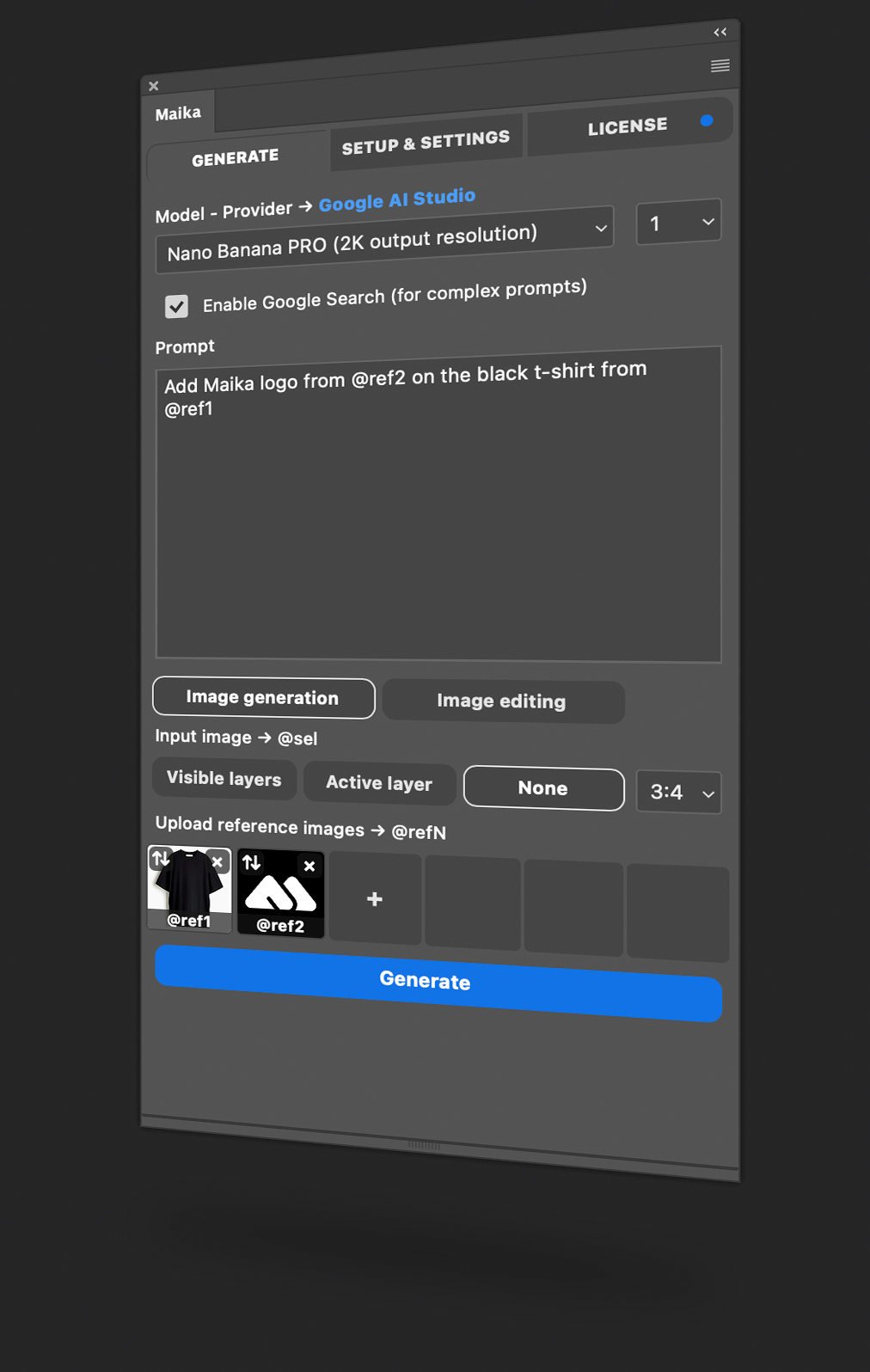
Two workflows. Total control. Generate or edit inside Photoshop, with configurable providers, models, and quality settings.
Generate new images or edit existing ones directly in your document. Results are imported as new layers, so you can keep using masks, selections, filters and adjustment layers, just like native Photoshop.
Use your canvas as context and guide results by uploading multiple reference images. Arrange references with drag & drop and target specific areas with selection-based workflows.
Keep your layer stack tidy with optional grouping and naming. Fit results to your canvas, manage color consistency (sRGB option), and cancel requests with a mouse click or automatically with built-in timeouts.
Pick your provider and then select the AI model you want to use to generate the image. Type a prompt in natural language or use a structured JSON prompt.
Choose between Image generation and Image editing: generate a new image or edit an existing one. Upload reference images — characters, objects, textures, you choose. Then refine your prompt with specific tags to guide the model.
The plugin submits all information to the provider. Your request is processed by the selected model, and the result is imported into your canvas as a new layer. You can now use Photoshop’s native tools to develop your idea, or generate more.
Maika is a plugin that integrates AI image generation and AI-assisted image editing directly into Adobe Photoshop, the most complete image editing software on the market.
You need a Mac or Windows computer with Adobe Photoshop 27.2.0 or later and the Adobe Creative Cloud Desktop app installed. You also need an internet connection, an API key for at least one supported AI provider (Replicate, Fal.ai, or Google AI Studio), and an active billing method / enough credits on the provider account you choose.
The .ccx extension identifies an Adobe plugin package used to install extensions in Creative Cloud applications like Photoshop. It is the standard format for modern UXP plugins and replaces older formats such as .zxp.
After installing Maika, activate your license key in the LICENSE tab. Then open SETUP & SETTINGS, choose an AI provider, paste your API key, and use “Test API key” to confirm it works. Make sure your provider account has an active billing method / enough credits before generating images. When a generation or edit completes, Maika imports the result into your current Photoshop document as a new layer.
Yes, you need an API key from at least one supported provider (Replicate, Fal.ai, or Google AI Studio). Maika does not include credits or bundled usage. Image generation and editing are billed by the provider you choose, based on the model and output resolution. You are responsible for setting up billing (or available credits) on your provider account.
Image generation creates a new image from your text prompt and optional reference images. Image editing modifies an existing image from your current Photoshop document using your prompt and optional reference images.
The generated image is imported as a new layer in the current document (and optionally grouped, depending on enabled settings).
Maika currently supports Replicate, Fal.ai and Google AI Studio. You can set up an API key for each provider and switch between them at any time. Each provider has its own pricing, and the cost per image depends on the model and output resolution. For current pricing details, refer to the provider’s official website.
Maika currently supports these models: Google Nano Banana (Gemini 2.5), Nano Banana Pro (Gemini 3.0), Nano Banana 2 (Gemini 3.1) and Bytedance Seedream 4 / 4.5. Model availability and pricing can vary depending on the provider you select. For the most up-to-date information, check the provider’s official website.
After purchasing Maika you will receive a license key. The license is intended for a single user and a single activation. This means you will reach the activation limit as soon as you activate the license. Use the Deactivate button to deactivate your Maika license on a device you no longer use, then activate it on the new one.
Yes. There are no subscription fees or recurring payments for Maika itself. However, generating or editing images requires an API key for at least one supported AI provider, and usage is billed separately by the provider.
In most cases, issues are caused by one of these: the license is not active, the provider API key is missing/invalid, the provider account has no active billing/credits, or a network/firewall restriction is blocking requests. If the problem persists, please contact support and include as much detail as possible (provider, model, task type, and any error message shown in the UI). We’ll do our best to help.
Turn ideas into images right where you edit, with a powerful AI tool. Maika — Make with AI